

Skip to content

Shared shopping, without the back-and-forth.

A grocery list built for families and groups who shop together, instead of a spreadsheet or a shared note. Plan at home; whoever’s at the store sees every add, sorted by category.

Works in any phone browser · iPhone app in beta

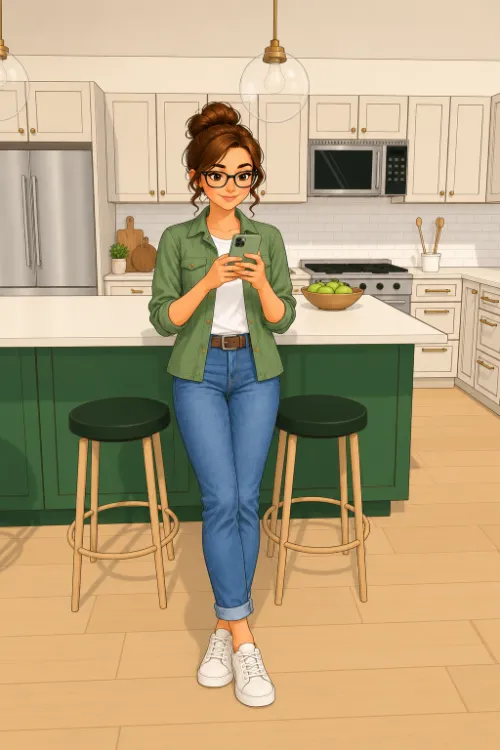
Illustration: Ella at her kitchen island on a Sunday, planning the week’s list on her phone.
Sunday, at the kitchen island.

Built for the grocery run, not borrowed for it.

A household grocery list has one job: everyone adds to it, and whoever’s at the store can trust it. Spreadsheets, notes and to-do apps were made for other jobs, so the sorting and checking fall to you.

Take the salmon.

One item, the way each list keeps it.

A spreadsheet

A shared note

A to-do app

All three leave the sorting, quantities and stores to you.

With Ella’s Cart

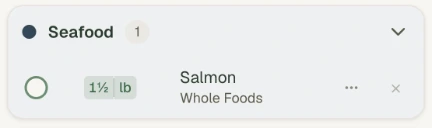
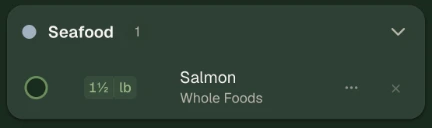
One Ella’s Cart card: the Seafood category with Salmon, 1½ lb, from Whole Foods.One Ella’s Cart card: the Seafood category with Salmon, 1½ lb, from Whole Foods.
  • Category Seafood
  • Quantity 1½ lb
  • Store Whole Foods

Every item gets its own line and sorts into its category as you add it, with the quantity and the store right there. Whoever is at the store sees the same list.

Start your list

How a week goes, in three parts

Illustration: Ella at the kitchen island, adding to the list on her phone.

At the island, the moment it comes to mind.

1 · At home

Add it when you think of it.

Type an item and it lands in its category, with the quantity you need and the store you get it from. Everyone on the list sees it right away.

  • Sorted into categories as you add
  • Quantities like 3½ lb or 1 bag
  • Note which store has it

2 · At the store

Shop it one section at a time.

Shopping mode shows what’s left to get. Tap Got It as things go in the cart, and the list at home keeps up while you shop.

  • What’s left to get, at a glance
  • Group by category or by store
  • Late adds show up mid-trip
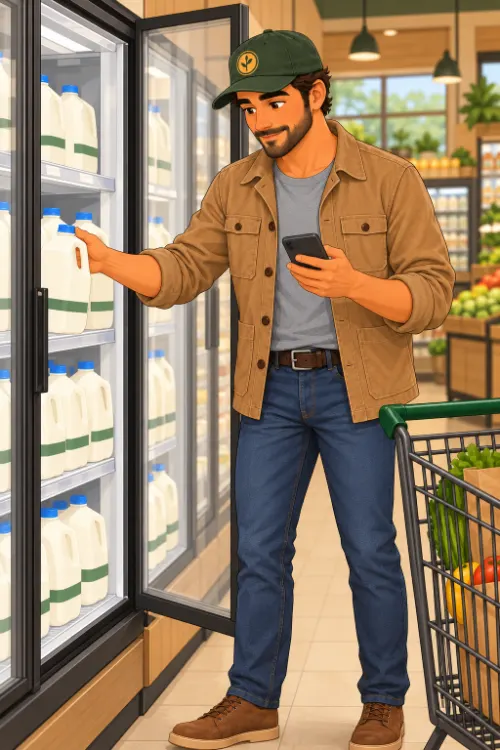
Illustration: Grocery Guy at the dairy cooler at Jazzy’s Grocery, reaching for milk and glancing at his phone.

Saturday at Jazzy’s Grocery, with the list in hand.

Illustration: Grocery Guy unpacking grocery bags at the kitchen island while Ella checks her phone.

Groceries home, and next week’s list already started.

3 · Next Sunday

Start next week from this one.

Save the list you buy most weeks. Next Sunday, put it back on the list and add what’s new.

  • Saved lists for the weekly staples
  • Put a saved list back on this week’s list
Illustration of Ella, the face of Ella’s Cart, smiling.

My idea. My husband built it.

“For years our family’s grocery list lived in Google Keep. It was great at first. But as the years went on, it ballooned: the same item listed twice, misspellings, different brands of the same thing. It became unmanageable. So I had an idea for a list that keeps itself tidy, and my husband built it. Friends and family started using it next. Now it’s ready for yours.”

— Ella

Set up in three steps.

  1. Step 1

    Start your list

    Sign up with your email. Your first list is ready.

  2. Step 2

    Send the link

    Invite your household with a link. Only people you invite can see the list.

  3. Step 3

    Add, shop, check off

    Everyone adds from home; whoever’s at the store taps Got It.

Good to know

Only the people you invite

Share a list with an invite link. You decide who’s on it.

Any phone, plus iPhone beta

Works in your phone’s browser today. The iPhone app is in beta.

Light and dark

Follows your phone’s setting, so the list is easy to read at night.

Questions

Is it free?

Yes. The shared grocery list is free.

Who can see my list?

Only the people you invite with a link. List Settings shows who owns the list and who’s on it.

Do I need to download an app?

No. It works in any phone or computer browser. The iPhone app is in beta if you’d like to try it.

Can we shop at more than one store?

Yes. Note which store has each item, then switch the list from categories to stores when you split a trip.

We already use a shared note. Why switch?

You don’t have to. If the note works, keep it. Ella’s Cart is for when the list keeps getting lost in edits: each item has its own line, quantity and store, and the person at the store sees what’s left to get.

Illustration of Ella laughing.

Your list is ready when you are.

Start your list, send the link to your household, and shop from the same page.

Start your list

The iPhone app is in beta.